# currencyapi documentation
> currencyapi provides real-time and historical foreign exchange rates for fiat, precious metal and crypto currencies over a simple JSON REST API.
Authenticate every request with your API key via the `apikey` query parameter or request header. Base URL: https://api.currencyapi.com
OpenAPI specification: https://currencyapi.com/docs/openapi.yaml
---
Source: https://currencyapi.com/docs
# currencyapi API Documentation
Use currencyapi to handle your exchange rate conversions. Our API helps you with current and historical foreign exchanges rates. Stop worrying about uptime & outdated data.
Building with an AI assistant? The full API is available as a machine-readable [OpenAPI 3.1 specification](https://currencyapi.com/docs/openapi.yaml), and the documentation is published as [llms.txt](https://currencyapi.com/docs/llms.txt) / [llms-full.txt](https://currencyapi.com/docs/llms-full.txt). There is also a hosted [MCP server](https://currencyapi.com/docs/mcp) at `https://api.currencyapi.com/mcp` that AI agents can connect to directly.
## Getting started
To get started, you have to register an API key [here](https://app.currencyapi.com/register). Then, follow our quickstart guide or continue reading our documentation and integrate currencyapi, using our HTTP API, dedicated client SDKs or Postman Collection. Ultimately, [upgrade your plan](https://app.currencyapi.com/subscription) to access all data & endpoints.
---
Source: https://currencyapi.com/docs/authentication
# Authentication
You'll need to authenticate your requests to access any of the endpoints in the currencyapi API. In this guide, we'll look at how authentication works. currencyapi offers two ways to authenticate your API requests: API key as `GET` parameter, or via request header.
**MULTIPLE API KEYS**
While our free plan only allows one API key at a time, our [paid plans](https://app.currencyapi.com/subscription) offer multiple API keys.
By using separate keys for different use cases you can track individual usage and make key rotations affect only certain parts of your application.
## GET query parameter
You can pass your API key along with every request by adding it as a query parameter `apikey`
**WARNING**
This method could expose your API key in access logs and such. Sending the API key via a header parameter as specified below circumvents this problem.
```bash {{ title: 'Example request with authentication via get request' }}
curl "https://api.currencyapi.com/v3/latest?apikey=YOUR-API-KEY"
```
Please don't commit your currencyapi password to GitHub!
## HTTP Header
The recommended way to authenticate with the currencyapi API through a HTTP request header:
```bash {{ title: 'Example request with authentication via header' }}
curl "https://api.currencyapi.com/v3/latest" \
-H "apikey: YOUR-API-KEY"
```
Always keep your token safe and reset it if you suspect it has been compromised.
## Using an SDK
If you use one of our official SDKs, you won't have to worry about any of the above — fetch your access token from the [currencyapi dashboard](https://app.currencyapi.com/dashboard) and the client library will take care of the rest. All the client libraries use header authentication behind the scenes.
---
Source: https://currencyapi.com/docs/convert
# Convert Exchange Rates
On this page, we’ll dive into the convert exchange rates endpoint you can use to directly convert a value to another currency's value.
---
## Convert Exchange Rates
Returns calculated values for today or any given date for all currencies.
### Required attributes
- **value** (string):
The value you want to convert
### Optional attributes
- **date** (string):
Date to retrieve historical rates from (format: 2021-12-31)
- **base_currency** (string):
The base currency to which all results are behaving relative to
By default all values are based on USD
- **currencies** (string):
A list of comma seperated currency codes which you want to get (EUR,USD,CAD)
By default all available currencies will be shown
- **type** (string):
They type of currency you want to get (fiat, metal or crypto)
By default all types will be shown
### Response Properties
The response is equal to the response from [`/latest`](https://currencyapi.com/docs/latest#response-structure) endpoint.
```bash {{title: 'cURL'}}
curl -G https://api.currencyapi.com/v3/convert?value=12 \
-H "apikey: YOUR-API-KEY"
```
```js
import currencyapi from '@everapi/currencyapi-js'
const client = new currencyapi('YOUR-API-KEY')
client.convert({
value: 12
}).then(response => {
console.log(response)
});
```
```python
import currencyapicom
client = currencyapicom.Client('YOUR-API-KEY')
result = client.convert('12')
print(result)
```
```php
$currencyapi = new \CurrencyApi\CurrencyApi\CurrencyApiClient('YOUR-API-KEY')
var_dump($currencyapi->convert([
'value' => 12,
]));
```
```json {{title: 'Full Response'}}
{
"meta": {
"last_updated_at": "2022-01-01T23:59:59Z"
},
"data": {
"AED": {
"code": "AED",
"value": 3.67306
},
"AFN": {
"code": "AFN",
"value": 91.80254
},
"ALL": {
"code": "ALL",
"value": 108.22904
},
"AMD": {
"code": "AMD",
"value": 480.41659
},
"...": "150+ more currencies"
}
}
```
---
Source: https://currencyapi.com/docs/currencies
# Currencies Endpoint
Returns a list of all featured currencies of currencyapi.
---
## Supported Currencies
The endpoint returns a list of all supported currencies that are available through our other endpoints.
### Optional attributes
- **currencies** (string):
A list of comma seperated currency codes which you want to get (EUR,USD,CAD)
By default all available currencies will be shown
- **type** (string):
They type of currency you want to get (fiat, metal or crypto)
By default all types will be shown
### Response Structure
Our `/currencies` endpoint offers the following information:
```bash {{title: 'cURL'}}
curl -G https://api.currencyapi.com/v3/currencies \
-H "apikey: YOUR-API-KEY"
```
```js
import currencyapi from '@everapi/currencyapi-js'
const client = new currencyapi('YOUR-API-KEY')
await client.currencies()
```
```python
import currencyapicom
client = currencyapicom.Client('YOUR-API-KEY')
result = client.currencies()
print(result)
```
```php
$client = new \CurrencyApi\CurrencyApi\CurrencyApiClient('YOUR-API-KEY');
var_dump($client->currencies());
```
```json {{title: 'Full Response'}}
{
"data": {
"AED": {
"symbol": "AED",
"name": "United Arab Emirates Dirham",
"symbol_native": "د.إ",
"decimal_digits": 2,
"rounding": 0,
"code": "AED",
"name_plural": "UAE dirhams",
"type": "fiat",
"countries": [
"AE"
]
},
"AFN": {
"symbol": "Af",
"name": "Afghan Afghani",
"symbol_native": "؋",
"decimal_digits": 0,
"rounding": 0,
"code": "AFN",
"name_plural": "Afghan Afghanis",
"type": "fiat",
"countries": [
"AF"
]
},
"...": {}
}
}
```
---
Source: https://currencyapi.com/docs/currency-list
# Currency List
The following list of currencies can also be retrieved by calling the [`/currencies`](/currencies) endpoint. We are continuously adding new currencies to our service.
Right now, we are featuring data for 170+ currencies.
---
Source: https://currencyapi.com/docs/historical
# Historical Exchange Rates
On this page, we’ll dive into the historical exchange rates endpoint you can use to retrieve historical exchangen rates for a specific date. Data are available all the way back to 1999.
---
## Historical Exchange Rates
This historical exchange rates endpoint provides currency rates for a specified date.
### Required attributes
- **date** (string):
Date to retrieve historical rates from (format: 2021-12-31)
### Optional attributes
- **base_currency** (string):
The base currency to which all results are behaving relative to
By default all values are based on USD
- **currencies** (string):
A list of comma seperated currency codes which you want to get (EUR,USD,CAD)
By default all available currencies will be shown
- **type** (string):
They type of currency you want to get (fiat, metal or crypto)
By default all types will be shown
### Response Properties
The response is equal to the response from [`/latest`](https://currencyapi.com/docs/latest#response-structure) endpoint.
```bash {{title: 'cURL'}}
curl -G https://api.currencyapi.com/v3/historical?date=2022-01-01 \
-H "apikey: YOUR-API-KEY"
```
```js
import currencyapi from '@everapi/currencyapi-js'
const client = new currencyapi('YOUR-API-KEY')
client.historical({
date: '2022-01-01'
}).then(response => {
console.log(response)
});
```
```python
import currencyapicom
client = currencyapicom.Client('YOUR-API-KEY')
result = client.historical('2022-01-01')
print(result)
```
```php
$currencyapi = new \CurrencyApi\CurrencyApi\CurrencyApiClient('YOUR-API-KEY')
var_dump($currencyapi->latest([
'date' => '2022-01-01',
]));
```
```json {{title: 'Full Response'}}
{
"meta": {
"last_updated_at": "2022-01-01T23:59:59Z"
},
"data": {
"AED": {
"code": "AED",
"value": 3.67306
},
"AFN": {
"code": "AFN",
"value": 91.80254
},
"ALL": {
"code": "ALL",
"value": 108.22904
},
"AMD": {
"code": "AMD",
"value": 480.41659
},
"...": "170+ more currencies"
}
}
```
---
Source: https://currencyapi.com/docs/latest
# Latest Exchange Rates
On this page, we’ll dive into the latest exchange rates endpoint you can use to retrieve the latest currency exchange rate data for any given base currency, programmatically.
**Data update intervals**
Depending on your subscription plan you will receive new data in different time intervals. While our dataset in the free plan is updated daily our bigger plans offer up to minute update intervals!
---
## Latest Currency Exchange Data
This endpoint returns currency exchange data for any given base currency (default `USD`).
### Optional attributes
- **base_currency** (string):
The base currency to which all results are behaving relative to
By default all values are based on USD
- **currencies** (string):
A list of comma-separated currency codes which you want to get (EUR,USD,CAD)
Alternatively you can provide a GET parameter array like so: `currencies[]=EUR¤cies[]=USD`
By default all available currencies will be shown
- **type** (string):
They type of currency you want to get (fiat, metal or crypto)
By default all types will be shown
### Reponse Structure
The API response comes as a JSON and consists of a `meta` and a `data` key. The `meta` holds useful information like the `last_updated_at` datetime to let you know then this dataset was last updated.
The `data` key holds the actual currency information.
```bash {{title: 'cURL'}}
curl -G https://api.currencyapi.com/v3/latest \
-H "apikey: YOUR-API-KEY"
```
```js
import currencyapi from '@everapi/currencyapi-js'
const client = new currencyapi('YOUR-API-KEY')
await client.latest()
```
```python
import currencyapicom
client = currencyapicom.Client('YOUR-API-KEY')
result = client.latest()
print(result)
```
```php
$client = new \CurrencyApi\CurrencyApi\CurrencyApiClient('YOUR-API-KEY');
$client->latest();
```
```json {{title: 'Full Response'}}
{
"meta": {
"last_updated_at": "2023-06-23T10:15:59Z"
},
"data": {
"AED": {
"code": "AED",
"value": 3.67306
},
"AFN": {
"code": "AFN",
"value": 91.80254
},
"ALL": {
"code": "ALL",
"value": 108.22904
},
"AMD": {
"code": "AMD",
"value": 480.41659
},
"...": "150+ more currencies"
}
}
```
---
### `meta` Response Properties
Available in all plans
- **last_updated_at** (string):
The latest update time as a datetime string
```json lines
{
"meta": {
"last_updated_at": "2022-01-01T23:59:59Z"
}
}
```
---
### `data` Response Properties
Available in all plans
- **three letter currency code** (string):
a list of supported currencies can be found here: [/currencies](/currencies)
- **three letter currency code.code** (string):
the currency code
- **three letter currency code.value** (float):
the current convertion rate
```json lines
{
"data": {
"AED": {
"code": "AED",
"value": 3.67306
}
}
}
```
---
Source: https://currencyapi.com/docs/mcp
'Connect AI agents to the currencyapi API through our hosted MCP (Model Context Protocol) server.'
# MCP Server
currencyapi ships a hosted [Model Context Protocol](https://modelcontextprotocol.io) (MCP) server, so AI agents and assistants can call the API as native tools — no SDK or glue code required.
```
https://api.currencyapi.com/mcp
```
The endpoint speaks the streamable HTTP transport. Listing the available tools works without authentication; executing a tool requires your API key, sent as the `apikey` header. You can [get a free API key here](https://app.currencyapi.com/register).
## Connect
Using Claude Code:
```bash
claude mcp add --transport http currencyapi https://api.currencyapi.com/mcp --header "apikey: YOUR_API_KEY"
```
Or add the server to any MCP-capable client (Claude Desktop, Cursor, VS Code, ...):
```json
{
"mcpServers": {
"currencyapi": {
"url": "https://api.currencyapi.com/mcp",
"headers": { "apikey": "YOUR_API_KEY" }
}
}
}
```
## Available tools
The tools are generated from the same [OpenAPI specification](https://currencyapi.com/docs/openapi.yaml) that describes the REST API, so they always match the documented endpoints, parameters and responses.
| Tool | Endpoint | Description |
|---|---|---|
| `getLatest` | `GET /v3/latest` | Latest exchange rates |
| `getHistorical` | `GET /v3/historical` | Historical exchange rates |
| `getConvert` | `GET /v3/convert` | Convert a value between currencies |
| `getRange` | `GET /v3/range` | Historical exchange rates for a time range |
| `getCurrencies` | `GET /v3/currencies` | List supported currencies |
| `getCountries` | `GET /v3/countries` | List countries |
| `getStatus` | `GET /v3/status` | Account quota status |
## Quotas and errors
Tool calls are metered exactly like REST requests: they consume your plan quota and return the same status codes and error responses (`401`, `422`, `429`, ...). If a call fails, the tool result contains the API's error message including hints on how to proceed.
---
Source: https://currencyapi.com/docs/quickstart
# Quickstart
This guide will get you all set up and ready to use the currencyapi API. We'll cover how to get started using one of our API clients and how to make your first API request. We'll also look at where to go next to find all the information you need to take full advantage of our powerful REST API.
Before you can make requests to the currencyapi API, you will need to grab your
API key from your dashboard. You find it under [App » Dashboard](https://app.currencyapi.com/dashboard).
## Choose your client
Before making your first API request, you need to pick which API client you will use. In addition to cURL HTTP requests, currencyapi offers [clients](/sdks) for JavaScript, Python, PHP and many more programming langauges. In the following example, you can see how to install each client.
```bash {{ title: 'cURL' }}
# cURL is most likely already installed on your machine
curl --version
```
```bash {{ language: 'js' }}
# Install the currencyapi JavaScript SDK
npm install @everapi/currencyapi-js --save
```
```bash {{ language: 'python' }}
# Install the currencyapi Python SDK
pip install currencyapicom
```
```bash {{ language: 'php' }}
# Install the currencyapi PHP SDK
composer require everapi/currencyapi-php
```
## Making your first API request
After picking your preferred client, you are ready to make your first call to the currencyapi API. Below, you can see how to send a
`GET` request to the `/latest` endpoint to get the latest exchange rates available to your subscription.
```bash {{ title: 'cURL' }}
curl -G https://api.currencyapi.com/v3/latest \
-H "apikey: YOUR-API-KEY"
```
```js
import currencyapi from '@everapi/currencyapi-js'
const client = new currencyapi('YOUR-API-KEY')
client.historical({
date: '01-01-2021'
}).then(response => {
console.log(response)
});
```
```python
import currencyapicom
client = currencyapicom.Client('YOUR-API-KEY')
result = client.historical('01-01-2022')
print(result)
```
```php
$currencyapi = new \CurrencyApi\CurrencyApi\CurrencyApiClient('YOUR-API-KEY');
var_dump($currencyapi->latest());
```
Alternatively, you can retrieve the latest exchange rates for a specific base currency and / or a comma seperated list of target currencies:
```bash {{ title: 'cURL' }}
curl -G https://api.currencyapi.com/v3/latest?base_currency=EUR¤cies=USD \
-H "apikey: YOUR-API-KEY"
```
```js
import currencyapi from '@everapi/currencyapi-js'
const client = new currencyapi('YOUR-API-KEY')
client.latest({
base_currency: 'USD',
currencies: 'EUR'
}).then(response => {
console.log(response)
});
```
```python
import currencyapicom
client = currencyapicom.Client('YOUR-API-KEY')
result = client.latest('USD',currencies=['EUR','AUD'])
print(result)
```
```php
$currencyapi = new \CurrencyApi\CurrencyApi\CurrencyApiClient('YOUR-API-KEY');
var_dump($currencyapi->latest([
'base_currency' => 'EUR',
'currencies' => 'USD',
]));
```
## What's next?
Great, you're now set up with an API client and have made your first request to the API. Here are a few links that might be handy as you venture further into the currencyapi API:
- [Grab your API key from the currencyapi dashboard](#)
- [Learn about the different error messages in currencyapi](/errors)
---
Source: https://currencyapi.com/docs/range
Available in plans >= medium
# Range Historical Exchange Rates
On this page, we’ll dive into the range historical exchange rates endpoint you can use to retrieve historical exchange rates for a given time range. Data are available all the way back to 1999.
Depending on your subscription plan you can request different accuracies: `day`, `hour`, `quarter_hour`, `minute`
---
## RangeHistorical Exchange Rates
This historical exchange rates endpoint provides currency rates for a specified date range.
### Required attributes
- **datetime_start** (string):
Datetime for the start of your requested range (format: 2022-12-01T00:00:00Z / ISO8601 Datetime)
- **datetime_end** (string):
️ Datetime for the end of your requested range (format: 2022-12-31T23:59:59Z / ISO8601 Datetime)
### Optional attributes
- **accuracy** (string):
The accuracy you want to receive.
Possible Values: `day`, `hour`, `quarter_hour`, `minute`
Default: `day`
For valid time ranges see below
- **base_currency** (string):
The base currency to which all results are behaving relative to
By default all values are based on USD
- **currencies** (string):
A list of comma seperated currency codes which you want to get (EUR,USD,CAD)
By default all available currencies will be shown
- **type** (string):
They type of currency you want to get (fiat, metal or crypto)
By default all types will be shown
### Valid Accuracy Time Ranges
- **day**:
- not more than 366 days back
- **hour**:
- not more than 7 days between start and end
- not more than 3 months back
- **quarter_hour**:
- not more than 24 hours between start and end
- not more than 7 days back
- **minute**:
- not more than 6 hours between start and end
- not more than 7 days back
### Response Properties
The API response comes with an easy-to-read JSON format and contains currency pairs for all supported world currencies.
The `datetime` in each object holds the datetime when the entry was last updated. Daily accuracy would result in end-of-day values and accuracy of an hour would result in end-of-hour values, and so on.
```bash {{title: 'cURL'}}
curl -G https://api.currencyapi.com/v3/range?datetime_start=2021-11-30T23:59:59Z&datetime_end=2021-12-31T23:59:59Z&accuracy=day \
-H "apikey: YOUR-API-KEY"
```
```js
import currencyapi from '@everapi/currencyapi-js'
const client = new currencyapi('YOUR-API-KEY')
client.range({
datetime_start: '2021-11-30T23:59:59Z',
datetime_end: '2021-12-30T23:59:59Z',
accuracy: 'day'
}).then(response => {
console.log(response)
});
```
```python
import currencyapicom
client = currencyapicom.Client('YOUR-API-KEY')
result = client.range('2021-11-30T23:59:59Z', '2021-12-30T23:59:59Z', 'day')
print(result)
```
```php
$currencyapi = new \CurrencyApi\CurrencyApi\CurrencyApiClient('YOUR-API-KEY')
var_dump($currencyapi->range([
'datetime_start' => '2021-11-30T23:59:59Z',
'datetime_end' => '2021-12-30T23:59:59Z',
'accuracy' => 'day'
]));
```
```json {{title: 'Full Response'}}
{
"data": [
{
"datetime": "2022-01-01T23:59:59Z",
"currencies": {
"AED": {
"code": "AED",
"value": 3.67306
},
"AFN": {
"code": "AFN",
"value": 91.80254
},
"ALL": {
"code": "ALL",
"value": 108.22904
},
"AMD": {
"code": "AMD",
"value": 480.41659
},
"...": "150+ more currencies"
}
},
{
"datetime": "2022-01-02T23:59:59Z",
"currencies": {
"AED": {
"code": "AED",
"value": 3.67306
},
"AFN": {
"code": "AFN",
"value": 91.80254
},
"ALL": {
"code": "ALL",
"value": 108.22904
},
"AMD": {
"code": "AMD",
"value": 480.41659
},
"...": "150+ more currencies"
}
},
{
"datetime": "2022-01-03T23:59:59Z",
"currencies": {
"AED": {
"code": "AED",
"value": 3.67306
},
"AFN": {
"code": "AFN",
"value": 91.80254
},
"ALL": {
"code": "ALL",
"value": 108.22904
},
"AMD": {
"code": "AMD",
"value": 480.41659
},
"...": "150+ more currencies"
}
}
]
}
```
---
### `data` Response Properties
Available in plans >= medium
- **datetime** (string):
The date as a datetime string
- **currencies** (object):
a list of supported currencies can be retrieved by calling the [`/currencies`](/currencies) endpoint
- **currencies.code** (string):
the currency code
- **currencies.value** (float):
the current conversion rate
```json lines
"data": [
{
"datetime": "2022-01-01T23:59:59Z",
"currencies": {
"AED": {
"code": "AED",
"value": 3.67306
},
"AFN": {
"code": "AFN",
"value": 91.80254
},
}
},
...
]
```
---
Source: https://currencyapi.com/docs/rate-limit
# Rate Limit & Quotas
You can use a certain number of requests per month, defined by your plan.
Once you go over this quota, the API returns a `429` HTTP status code, and you either need to upgrade your plan or wait until the end of the month. We enforce a minute rate limit for specific plans. If you exceed this, the API returns a `429` HTTP status code. You then have to wait until the end of the minute to make more requests.
Not every request counts
Only successful calls count against your quota. Any error on our side or validation errors (e.g., wrong parameter) will NOT count against your quota or rate limit.
## Response Headers
We attach specific headers to tell you your current monthly/minute quota and how much you have remaining in the period.
```json lines
X-RateLimit-Limit-Quota-Minute: 10
X-RateLimit-Limit-Quota-Month: 300
X-RateLimit-Remaining-Quota-Minute: 5
X-RateLimit-Remaining-Quota-Month: 199
```
---
Source: https://currencyapi.com/docs/sdks
# SDKs
The recommended way to interact with the currencyapi API is by using one of our official SDKs. Today, currencyapi offers fine-tuned JavaScript, Ruby, PHP, Python, and Go libraries to make your life easier and give you the best experience when consuming the API.
---
Source: https://currencyapi.com/docs/status
# Status Endpoint
The status endpoint returns information about your current quota.
Requests to this endpoint do not count against your quota or rate limit.
---
## Check API Status
This status endpoint returns information about your current quota.
---
### Response Properties
- **quotas** (object):
Contains information about your request quota.
```bash {{title: 'cURL'}}
curl -G https://api.currencyapi.com/v3/status \
-H "apikey: YOUR-API-KEY"
```
```js
import currencyapi from '@everapi/currencyapi-js'
const client = new currencyapi('YOUR-API-KEY')
await client.status()
```
```python
import currencyapicom
client = currencyapicom.Client('YOUR-API-KEY')
result = client.status()
print(result)
```
```php
$client = new \CurrencyApi\CurrencyApi\CurrencyApiClient('YOUR-API-KEY');
$client->status();
```
```json {{title: 'Response'}}
{
"account_id": 313373133731337,
"quotas": {
"month": {
"total": 300,
"used": 72,
"remaining": 229
},
"grace": {
"total": 0,
"used": 0,
"remaining": 0
}
}
}
```
---
Source: https://currencyapi.com/docs/status-codes
# Request Status Codes
You can tell if your request was successful by checking the status code when receiving an API response. If a response comes back unsuccessful, you can use the error type and error message to figure out what has gone wrong and do some rudimentary debugging (before contacting support). A successful request will be returned with status code `200`.
Before reaching out to support with an error, please be aware that 99% of all
reported errors are, in fact, user errors. Therefore, please carefully check
your code before contacting our support.
---
## Status codes
Here is a list of the different categories of status codes returned by the currencyapi API. Use these to understand if a request was successful.
A 200 status code indicates a successful response.
A 403 status code indicates that you are not allowed to use this endpoint, [please upgrade your plan](https://app.currencyapi.com/subscription).
A 404 status code indicates that a requested endpoint does not exist.
A validation error, please check the list of validation errors: [here](#validation-errors)
A 429 status code indicates that you have hit your rate limit or your monthly limit. For more requests [please upgrade your plan](https://app.currencyapi.com/subscription).
A 500 status code indicates a internal server error - let us know: support@currencyapi.com
---
## Validation errors
Here is a list of the different categories of status codes returned by the currencyapi API. Use these to understand if a request was successful.
One of the selected currencies is invalid, to get a full list of all currencies you can use the [`/currencies`](/currencies) endpoint.
The selected base_currency is invalid, to get a full list of all currencies you can use the [`/currencies`](/currencies) endpoint.
The date is not a valid date. Please use the following format: YYYY-MM-DD
The datetime_start must be a date before or equal to datetime_end
The datetime_start is not a valid date. Datetime for the start of your requested range (format: 2021-12-31T23:59:59Z / ISO8601 Datetime)
The datetime_start must be a date before or equal to datetime_end
The datetime_start is not a valid date. Datetime for the end of your requested range (format: 2021-12-31T23:59:59Z / ISO8601 Datetime)
The selected accuracy is invalid. Possible Values: day, hour, quarter_hour, minute, default: day
---
---
Source: https://currencyapi.com/docs/testing
# Testing
Available in plans >= medium
This page includes all needed information to make sure your test environment works before deploying to production.
### Sandbox API Keys
An API request sent with a sandbox api key is automatically identified as a request in sandbox mode. All request with sandbox keys will respond with dummy data.
Requests done with sandbox keys do not count against your quota.
Please note that the requests are still shown in the graph on the dashboard. You can select only your live key if you want to filter them out.
### Response
All requests to will respond with random values for each currency. All other functionality is the same (e.g. filtering, converting)
The `/currencies` endpoint will respond with only three currencies.
---
Source: https://currencyapi.com/docs/examples/csharp-currency-converter
# Building a Currency Converter in C#
Currencyapi.com provides currency data with update rates ranging from daily to minutely update frequencies. Hence, it is the perfect data provider for your C# currency converter.
Developer experience is important to us. Therefore, you may access our API using C# SDK, or alternatively via simple `GET` requests using a HTTP client. Furthermore, we provide a [postman collection](/sdks) to make the implementation even easier for you.
In this tutorial, we will focus on accessing the API directly using `GET` requests.
The use of our API requires an API key. Register your [free API key here](https://app.currencyapi.com/register).
## Simple C# Currency Converter Example:
Using the [C# SDK](/sdks) is really the most efficient method to build a C# currency converter, it requires the least amount of code lines.
Exchange Rate Data can easily be obtained by running the following script:
```csharp
var client = new RestClient("https://api.currencyapi.com/v3/latest");
client.Timeout = -1;
var request = new RestRequest(Method.GET);
request.AddHeader("apikey", "YOUR-API-KEY");
IRestResponse response = client.Execute(request);
Console.WriteLine(response.Content);
```
Since `USD` is set as a default base currency, all exchange rates are relative to `USD`. If you would like to change this, simply add the desired `base_currency` parameter to your request:
```csharp
...
var client = new RestClient("https://api.currencyapi.com/v3/latest?base_currency=CAD");
...
```
Also, it is possible to limit the amount of currencies that are returned by introducing the `currencies` parameter to your request.
```csharp
...
var client = new RestClient("https://api.currencyapi.com/v3/latest?apikey=YOUR-API-KEY&base_currency=EUR¤cies=USD,AED,CHF");
...
```
This will of course not have an impact on the data retrieved, but it will the response easier to handle and easier to read.
```json
{
"meta":{
"last_updated_at":"2023-08-03T23:59:59Z"
},
"data":{
"BIF": {
"code": "BIF",
"value": 2825.50500246
},
"BMD": {
"code": "BMD",
"value": 1
},
"BNB": {
"code": "BNB",
"value": 0.0041301484
},
"BND": {
"code": "BND",
"value": 1.3399901826
},
"BOB": {
"code": "BOB",
"value": 6.9088110813
},
"...": "..."
}
}
```
The values in the JSON response are exchange rates. Since we intend to build a currency converter, we still have to multiply the exchange
rate with the amount that we would like to convert, to end up with the desired result.
## Converter Endpoint
If you do not wish to take this small extra step, currencyapi.com provides an extra [`/convert` endpoint](/convert) that was specifically designed for this task.
However, it is only available for plans >= medium.
---
Source: https://currencyapi.com/docs/examples/currency-converter-javascript
# Building a Currency Converter in JavaScript
## Introduction
In this article, we build a currency converter in JavaScript, with the help of our [JavaScript package], which handles the requests to the API itself.
Furthermore, we will use [vite] as build tool and [tailwind] for easy styling.
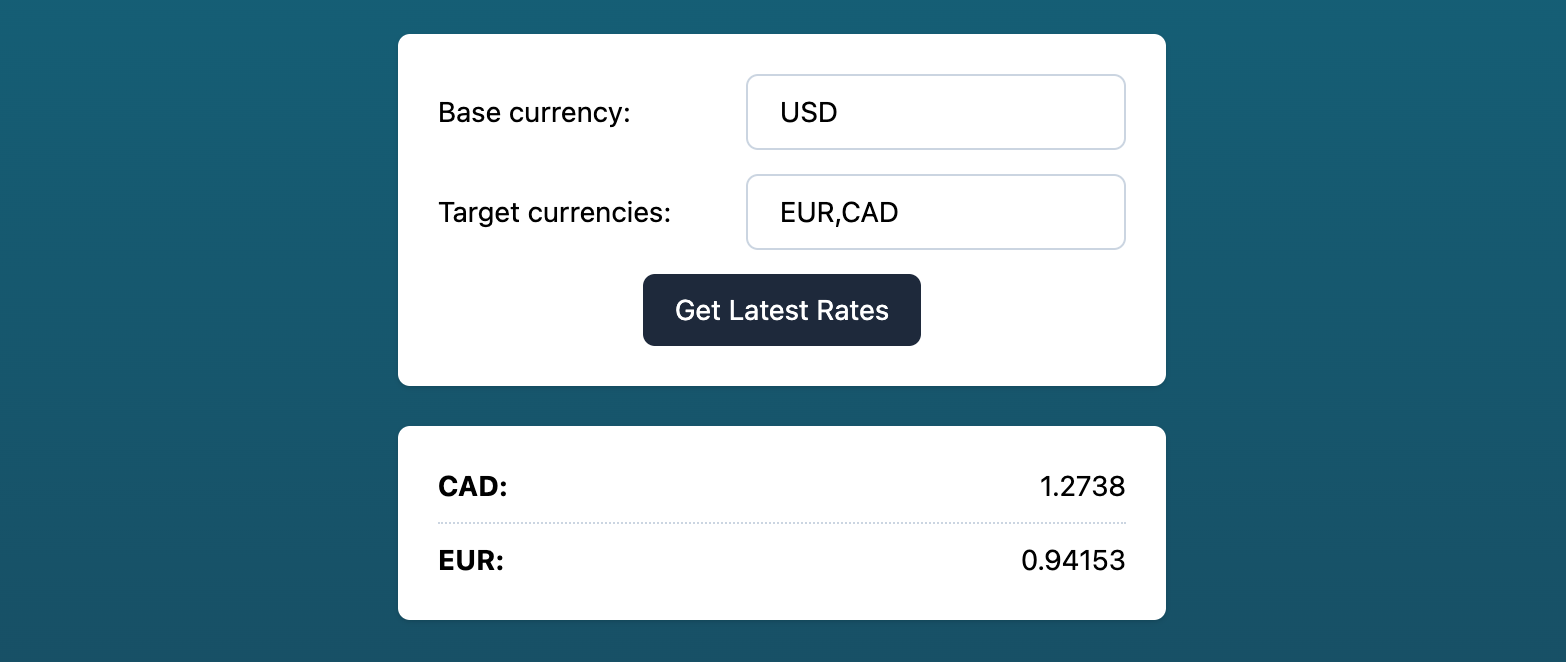
Preview of the final outcome of this tutorial
## Prerequisites
- An API Key for [currencyapi.com]
## Scaffold your vite project
Navigate to your workspace on your machine where you want to create your currency converter project and initialize a new vite project:
```js {{title: 'npm'}}
npm create vite@latest
```
```js {{title: 'yarn'}}
yarn create vite
```
Then follow the prompts in your console. Make sure to select `vanilla` for your project setup!
Afterward, switch to the newly created project folder.
## Install the CurrencyAPI package
As mentioned above, we will use our [JavaScript package]:
```js {{title: 'npm'}}
npm install --save @everapi/currencyapi-js
```
```js {{title: 'yarn'}}
yarn add @everapi/currencyapi-js
```
## Install & configure tailwind.css (optional)
We want to use Tailwind CSS v3, so add it to your project together with `postcss` and `autoprefixer` for a clean and stable build process:
```js {{title: 'npm'}}
npm install -D tailwindcss postcss autoprefixer
```
```js {{title: 'yarn'}}
yarn add -D tailwindcss postcss autoprefixer
```
Afterward, initialize tailwind, which will create a `tailwind.config.js` in your project's root directory:
```
npx tailwindcss init
```
Open the newly created `tailwind.config.js` and modify the content attribute to match the vite setup:
```js
module.exports = {
content: [".*.{html,js}"],
theme: {
extend: {},
},
plugins: [],
}
```
Also, add the Tailwind directives to your CSS:
```
@tailwind base;
@tailwind components;
@tailwind utilities;
```
As a last step, we need to tell `postcss` to include both tailwind and `autoprefixer`. Otherwise, the tailwind classes won't end up in our final css.
To do so, create a file named `postcss.config.js` in your project root directory next to your tailwind config and add the following lines:
```js
module.exports = {
plugins: [
require('tailwindcss'),
require('autoprefixer')
]
}
```
## Start vite in dev mode
Now that our preparations are done, we can start up vite:
```js {{title: 'npm'}}
npm run dev
```
```js {{title: 'yarn'}}
yarn dev
```
This should open up a new tab in your browser automatically. If not, open `http://localhost:3000/`.
You should now see the default Vite index page reading `Hello Vite!`.
## Prepare your HTML
The next step is to adapt the default landing page.
Open the `index.html` and build a form for currency conversion. We will need:
- A wrapper `` for our inputs
- An `` for the base currency
- An `` for the target currencies
- A submit ``
- A container `` where we display our dynamic currency data
```html
```
Note that all CSS classes are tailwind specific, so if you want to use another CSS framework or style it yourself, feel free to remove them completely.
We will use the `id` attributes in our JavaScript.
## Handle form submission in JavaScript
Now that our HTML structure is prepared, we can add the JavaScript functionality to call the CurrencyAPI. To do so, we need to open the `main.js`.
:::tip
As this file is not empty, feel free to remove any code but keep the style import in the first line.
:::
First we need to import the `CurrencyAPI` helper class from the JavaScript package:
```js
import CurrencyAPI from '@everapi/currencyapi-js';
```
Now that we imported the Class, we also need to initialize a new instance using your API Key:
```js
const currencyApi = new CurrencyAPI('YOUR_API_KEY_GOES_HERE');
```
Next, we store our HTML elements to constants so we can access them easily at a later point:
```js
const latestRatesForm = document.getElementById('latest_rates_form');
const baseCurrencyInput = document.getElementById('base_currency_input');
const currenciesInput = document.getElementById('currencies');
const latestRatesDisplay = document.getElementById('latest_rates_display');
```
All that is left to do is to append a listener for the form submission, which will make a request to the API using the `latest` endpoint:
```js
latestRatesForm.addEventListener('submit', (e) => {
e.preventDefault();
currencyApi.latest({
base_currency: baseCurrencyInput.value.trim(),
currencies: currenciesInput.value.replaceAll(' ', '')
}).then(response => {
let currencies = Object.keys(response.data);
let resultHTML = '';
for (let currency of currencies) {
resultHTML += `
${currency}:${response.data[currency].value}
`;
}
latestRatesDisplay.innerHTML = resultHTML;
});
});
```
That's it! You have successfully built a currency converter in JavaScript. When you now press the submit button, a request to the `latest` endpoint will be triggered.
If you have specified any target currencies, only those will be rendered. Otherwise, all supported currencies will be displayed.
[vite]: https://vitejs.dev/guide/
[tailwind]: https://tailwindcss.com/
[currencyapi.com]: https://currencyapi.com
[JavaScript package]: https://www.npmjs.com/package/@everapi/currencyapi-js
---
Source: https://currencyapi.com/docs/examples/currency-converter-vuejs
# Building a Currency Converter in Vue.js
## Introduction
In this article, we build a currency converter in [Vue.js], with the help of our [JavaScript package] which handles the requests to the API itself.
Furthermore, we will use [vite] as build tool and [tailwind] for easy styling.
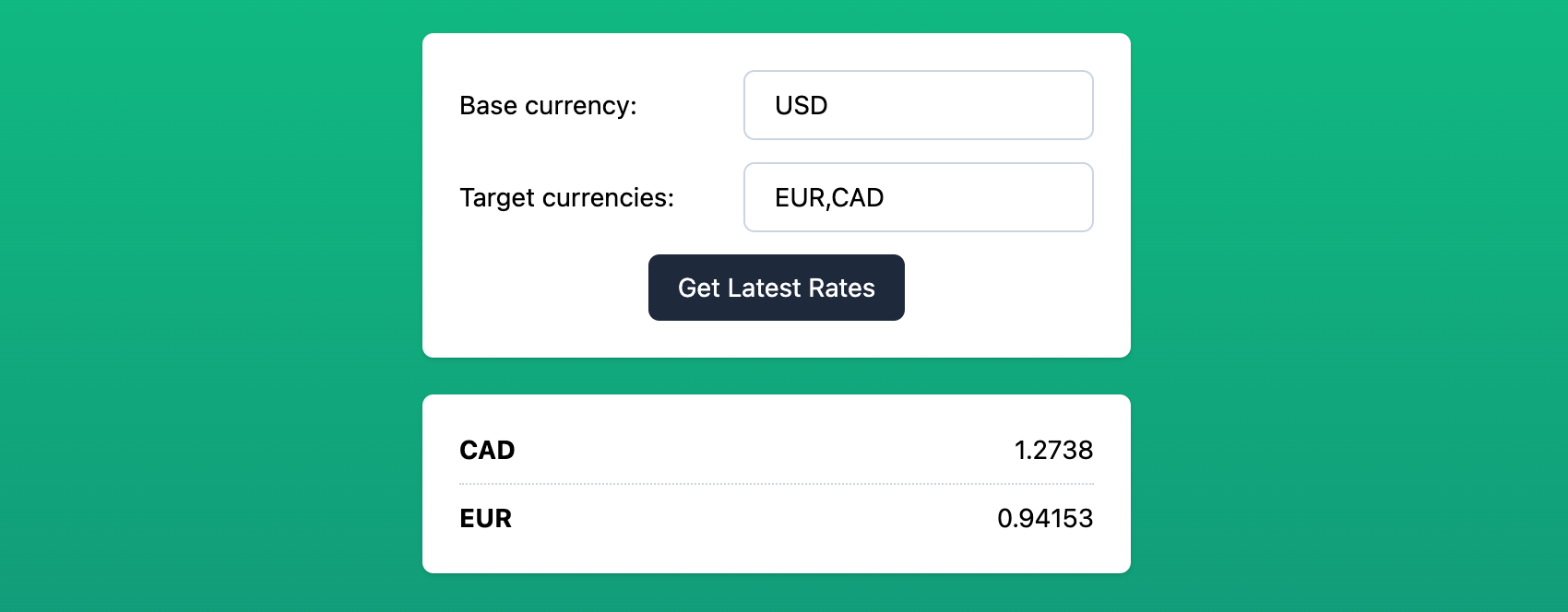
Preview of the final outcome of this tutorial
## Prerequisites
- An API Key for [currencyapi.com]
## Scaffold your vite project
Navigate to your workspace on your machine where you want to create your currency converter project and initialize a new vite project:
```js {{title: 'npm'}}
npm create vite@latest
```
```js {{title: 'yarn'}}
yarn create vite
```
Then follow the prompts in your console. Make sure to select `vue` for your project setup!
Afterward, switch to the newly created project folder.
## Install the CurrencyAPI package
As mentioned above, we will use our [JavaScript package]:
```js {{title: 'npm'}}
npm install --save @everapi/currencyapi-js
```
```js {{title: 'yarn'}}
yarn add @everapi/currencyapi-js
```
## Install & configure tailwind.css (optional)
We want to use Tailwind CSS v3, so add it to your project together with `postcss` and `autoprefixer` for a clean and stable build process:
```js {{title: 'npm'}}
npm install -D tailwindcss postcss autoprefixer
```
```js {{title: 'yarn'}}
yarn add -D tailwindcss postcss autoprefixer
```
Afterward, initialize tailwind, which will create a `tailwind.config.js` in your project's root directory:
```
npx tailwindcss init
```
Open the newly created `tailwind.config.js` and modify the content attribute to match the vite setup:
```js
module.exports = {
content: ["src/**/*.{html,js,vue}"],
theme: {
extend: {},
},
plugins: [],
}
```
For loading the tailwind styles, create a `css` folder in your `src` directory. In this `css` folder, create a `style.css` file with the following lines:
```
@tailwind base;
@tailwind components;
@tailwind utilities;
```
Now you can include your styles in your `main.js` (ideally under the existing imports):
```js
import './css/style.css'
```
As a last step, we need to tell `postcss` to include both tailwind and `autoprefixer`. Otherwise, the tailwind classes won't end up in our final css.
To do so, create a file named `postcss.config.js` in your project root directory next to your tailwind config and add the following lines:
```js
module.exports = {
plugins: [
require('tailwindcss'),
require('autoprefixer')
]
}
```
## Start vite in dev mode
Now that our preparations are done, we can start up vite:
```js {{title: 'npm'}}
npm run dev
```
```js {{title: 'yarn'}}
yarn dev
```
This should open up a new tab in your browser automatically. If not, open `http://localhost:3000/`.
You should now see the default Vite index page reading `Hello Vite!`.
## Create a CurrencyConverter Single-File-Component (SFC)
Go to `src/components` and create a Vue file named `CurrencyConverter.vue`. We will use the `Options API` of Vue.js.
### Script
This component will hold the parameters which will be sent to the API in `params`, the results we get back in `results` and of course an instance of our JavaScript helper class `currencyApi` which needs to be initialized with your API Key (replace `YOUR-API-KEY`).
The only method we will need for this basic example is a `submit` function, which will handle the API call to the `latest` endpoint via our [JavaScript package].
```vue
```
### Template
The `` consists of two main parts:
- A `` that wraps the inputs and triggers the `submit`
- A container where we loop over the received currencies stored in `results`
```vue
{{ result.code }}{{ result.value }}
```
All CSS classes used here are Tailwind specific and can be freely adapted or removed.
## Using the CurrencyConverter Component
To use our freshly created component, go to the `App.vue` and replace the `HelloWorld.vue` import with our `CurrencyConverter.vue` file:
```js
import CurrencyConverter from './components/CurrencyConverter.vue';
```
in the `` block, put our component to good use:
```vue
```
And that's it! You have successfully built a currency converter in Vue.js.
[vite]: https://vitejs.dev/guide/
[tailwind]: https://tailwindcss.com/
[currencyapi.com]: https://currencyapi.com
[JavaScript package]: https://www.npmjs.com/package/@everapi/currencyapi-js
[Vue.js]: https://vuejs.org
---
Source: https://currencyapi.com/docs/examples/go-currency-converter
# Building a Currency Converter in Go
Currencyapi.com provides currency data with update rates ranging from daily to minutely update frequencies. Hence, it is the perfect data provider for your Go currency converter.
Developer experience is important to us. Therefore, you may access our API using Go SDK, or alternatively via simple `GET` requests using a HTTP client. Furthermore, we provide a [postman collection](/sdks) to make the implementation even easier for you.
In this tutorial, we will focus on accessing the API directly using `GET` requests.
The use of our API requires an API key. Register your [free API key here](https://app.currencyapi.com/register).
## Simple Go Currency Converter Example:
Using the [Go SDK](/sdks) is really the most efficient method to build a Go currency converter, it requires the least amount of code lines.
Exchange Rate Data can easily be obtained by running the following script:
```go
package main
import (
"fmt"
"net/http"
"io/ioutil"
)
func main() {
url := "https://api.currencyapi.com/v3/latest"
method := "GET"
client := &http.Client {
}
req, err := http.NewRequest(method, url, nil)
if err != nil {
fmt.Println(err)
return
}
req.Header.Add("apikey", "YOUR-API-KEY")
res, err := client.Do(req)
if err != nil {
fmt.Println(err)
return
}
defer res.Body.Close()
body, err := ioutil.ReadAll(res.Body)
if err != nil {
fmt.Println(err)
return
}
fmt.Println(string(body))
}
```
Since `USD` is set as a default base currency, all exchange rates are relative to `USD`. If you would like to change this, simply add the desired `base_currency` parameter to your request:
```go
...
url := "https://api.currencyapi.com/v3/latest?&base_currency=CAD"
...
```
Also, it is possible to limit the amount of currencies that are returned by introducing the `currencies` parameter to your request.
```go
...
url := "https://api.currencyapi.com/v3/latest?base_currency=EUR¤cies=USD,AED,CHF"
...
```
This will of course not have an impact on the data retrieved, but it will the response easier to handle and easier to read.
```json
{
"meta":{
"last_updated_at":"2023-08-03T23:59:59Z"
},
"data":{
"BYN": {
"code": "BYN",
"value": 2.4997623239
},
"BYR": {
"code": "BYR",
"value": 24997.623333524
},
"BZD": {
"code": "BZD",
"value": 2
},
"CAD": {
"code": "CAD",
"value": 1.3349901826
},
"CDF": {
"code": "CDF",
"value": 2480.7373295025
},
"...": "..."
}
}
```
The values in the JSON response are exchange rates. Since we intend to build a currency converter, we still have to multiply the exchange
rate with the amount that we would like to convert, to end up with the desired result.
## Converter Endpoint
If you do not wish to take this small extra step, currencyapi.com provides an extra [`/convert` endpoint](/convert) that was specifically designed for this task.
However, it is only available for plans >= medium.
---
Source: https://currencyapi.com/docs/examples/java-currency-converter
# Building a Currency Converter in Java
Currencyapi.com provides currency data with update rates ranging from daily to minutely update frequencies. Hence, it is the perfect data provider for your java currency converter.
Developer experience is important to us. Therefore, you may access our API using java SDK, or alternatively via simple `GET` requests using a HTTP client. Furthermore, we provide a [postman collection](/sdks) to make the implementation even easier for you.
In this tutorial, we will focus on accessing the API directly using `GET` requests.
The use of our API requires an API key. Register your [free API key here](https://app.currencyapi.com/register).
## Simple Java Currency Converter Example:
Using the [java SDK](/sdks) is really the most efficient method to build a java currency converter, it requires the least amount of code lines.
Exchange Rate Data can easily be obtained by running the following script:
```java
String route = "https://api.currencyapi.com/v3/latest?apikey=YOUR-API-KEY";
URL url = new URL(route);
HttpURLConnection request = (HttpURLConnection) url.openConnection();
request.connect();
JsonParser jp = new JsonParser();
JsonElement root = jp.parse(new InputStreamReader((InputStream) request.getContent()));
JsonObject jsonobj = root.getAsJsonObject();
String req_result = jsonobj.get("result").getAsString();
```
Since `USD` is set as a default base currency, all exchange rates are relative to `USD`. If you would like to change this, simply add the desired `base_currency` parameter to your request:
```java
...
url = "https://api.currencyapi.com/v3/latest?apikey=YOUR-API-KEY&base_currency=EUR"
...
```
Also, it is possible to limit the amount of currencies that are returned by introducing the `currencies` parameter to your request.
```java
...
url = "https://api.currencyapi.com/v3/latest?apikey=YOUR-API-KEY&base_currency=EUR¤cies=USD,AED,CHF"
...
```
This will of course not have an impact on the data retrieved, but it will the response easier to handle and easier to read.
```json
{
"meta":{
"last_updated_at":"2023-08-02T23:59:59Z"
},
"data":{
"ADA":{
"code":"ADA",
"value":3.3342788788
},
"AOA":{
"code":"AOA",
"value":823.0601503138
},
"ARB":{
"code":"ARB",
"value":0.8813003623
},
"ARS":{
"code":"ARS",
"value":277.3166432108
}
}
}
```
The values in the JSON response are exchange rates. Since we intend to build a currency converter, we still have to multiply the exchange
rate with the amount that we would like to convert, to end up with the desired result.
## Converter Endpoint
If you do not wish to take this small extra step, currencyapi.com provides an extra [`/convert` endpoint](/convert) that was specifically designed for this task.
However, it is only available for plans >= medium.
---
Source: https://currencyapi.com/docs/examples/python-currency-converter
# Building a Currency Converter in Python
Currencyapi.com provides currency data with update rates ranging from daily to minutely update frequencies.
Developer experience is important to us. Therefore, you may access our API with `GET` requests or alternatively use our python
SDK to build a python currency converter. We will provide an example for both methods.
The use of our API requires an API key. Register your [free API key here](https://app.currencyapi.com/register).
## Using the python SDK
Using the [python SDK](/sdks) is really the most efficient method to build a python currency converter and requires the least amount of code lines.
To get started, simply install the python package with the following command:
```python
pip3 install currencyapicom
```
Afterwards, you will be able to access the package by entering submitting your API key to the client.
```python
import currencyapicom
client = currencyapicom.Client('YOUR-API-KEY')
result = client.latest()
print(result)
```
## Using the requests library
Alternatively, you can directly access the API through any HTTP client. In this example, we are using python's requests library.
```python
import requests
url = "https://api.currencyapi.com/v3/latest"
headers = {
'apikey': 'YOUR-API-KEY'
}
response = requests.request("GET", url, headers=headers)
print(response.text)
```
Both methods will lead to the same JSON response. The snippets above will provide you with a list of exchange rates
relative the `USD`, as this is implemented as base currency.
One note regarding the authentication: if you are using the requests library, please make sure to authenticate via a header parameter
and not through submitting it as a `GET` parameter.
```json
{
"meta":{
"last_updated_at":"2023-08-02T23:59:59Z"
},
"data":{
"ADA":{
"code":"ADA",
"value":3.3342788788
},
"AED":{
"code":"AED",
"value":3.673000426
},
"AFN":{
"code":"AFN",
"value":85.2268428169
}
"...": "..."
}
}
```
The values in the JSON response are exchange rates. Since we intend to build a currency converter, we still have to multiply the exchange
rate with the amount that we would like to convert, to end up with the desired result.
## Converter Endpoint
If you do not wish to take this small extra step, currencyapi.com provides an extra [`/convert` endpoint](/convert) that was specifically designed for this task.
However, it is only available for plans >= medium.
---
Source: https://currencyapi.com/docs/examples/ruby-currency-converter
# Building a Currency Converter in Ruby
Currencyapi.com provides currency data with update rates ranging from daily to minutely update frequencies. Hence, it is the perfect data provider for your ruby currency converter.
Developer experience is important to us. Therefore, you may access our API using ruby SDK, or alternatively via simple `GET` requests using a HTTP client.
In this tutorial, we will focus on accessing the API directly using `GET` requests.
The use of our API requires an API key. Register your [free API key here](https://app.currencyapi.com/register).
## Simple Ruby on Rails Currency Converter Example:
Using the [ruby SDK](/sdks) is really the most efficient method to build a ruby currency converter as the package is maintained by us and it requires the least amount of code lines.
Assuming, you have the ruby package already installed, run the following code to obtain currency exchange data.
```ruby
require 'net/http'
require 'json'
url = "https://api.currencyapi.com/v3/latest?apikey=YOUR-API-KEY"
uri = URI(url)
response = Net::HTTP.get(uri)
response_obj = JSON.parse(response)
rate = response_obj['data']
```
Since `USD` is set as a default base currency, all exchange rates are relative to `USD`. If you would like to change this, simply add the desired `base_currency` parameter to your request:
```ruby
...
url = "https://api.currencyapi.com/v3/latest?apikey=YOUR-API-KEY&base_currency=EUR"
...
```
In any case, you will end up with the following JSON response.
```json
{
"meta":{
"last_updated_at":"2023-08-02T23:59:59Z"
},
"data":{
"ADA":{
"code":"ADA",
"value":3.3342788788
},
"AED":{
"code":"AED",
"value":3.673000426
},
"AFN":{
"code":"AFN",
"value":85.2268428169
}
"...": "..."
}
}
```
The values in the JSON response are exchange rates. Since we intend to build a currency converter, we still have to multiply the exchange
rate with the amount that we would like to convert, to end up with the desired result.
## Converter Endpoint
If you do not wish to take this small extra step, currencyapi.com provides an extra [`/convert` endpoint](/convert) that was specifically designed for this task.
However, it is only available for plans >= medium.